
Summary
Create a Conference Bridge in the PBX portal, set unique Moderator, Standard and Silent PINs, then route callers in through an Extension Mapping, an Auto Attendant keypress, or a dedicated phone number.
In this article:
- Step 1: Create the Conference Bridge
- Option A: Extension Mapping
- Option B: Auto Attendant menu option
- Option C: Direct Dial phone number
- Meeting invites & best practices
- Troubleshooting
At a glance
| Capacity | 4 participants per active extension on the account (e.g. 20 extensions = up to 80 participants). |
| Billing | Included on C2 plans. Standard plans: $0.039 per participant per minute. |
| In-call controls | DTMF keypad. Available controls depend on the PIN the participant enters. |
Step 1: Create the Conference Bridge
Prerequisite: Create the bridge before configuring Extension Mappings, Auto Attendants, or Phone Number routes. Each of those must point to an existing bridge.
- Log into the Cytracom PBX portal.
- Click the + icon on the right side of the main menu bar.
- Select Conference Bridge.
- Click + New and enter a descriptive Name (e.g. Sales Weekly Sync).
- Set PINs for each access level you need (see the table below).
- Click Submit to save the bridge.

PIN access levels
| Access level | In-call controls | Recommended for |
|---|---|---|
| Moderator | Press 1: Mute / unmute self Press 2: Lock / unlock the room Press 3: Mute all participants |
Meeting hosts & presenters |
| Standard | Press 1: Mute / unmute self | Regular meeting attendees |
| Silent | Listen-only (no keypad controls) | Viewers, webinars, large broadcasts |
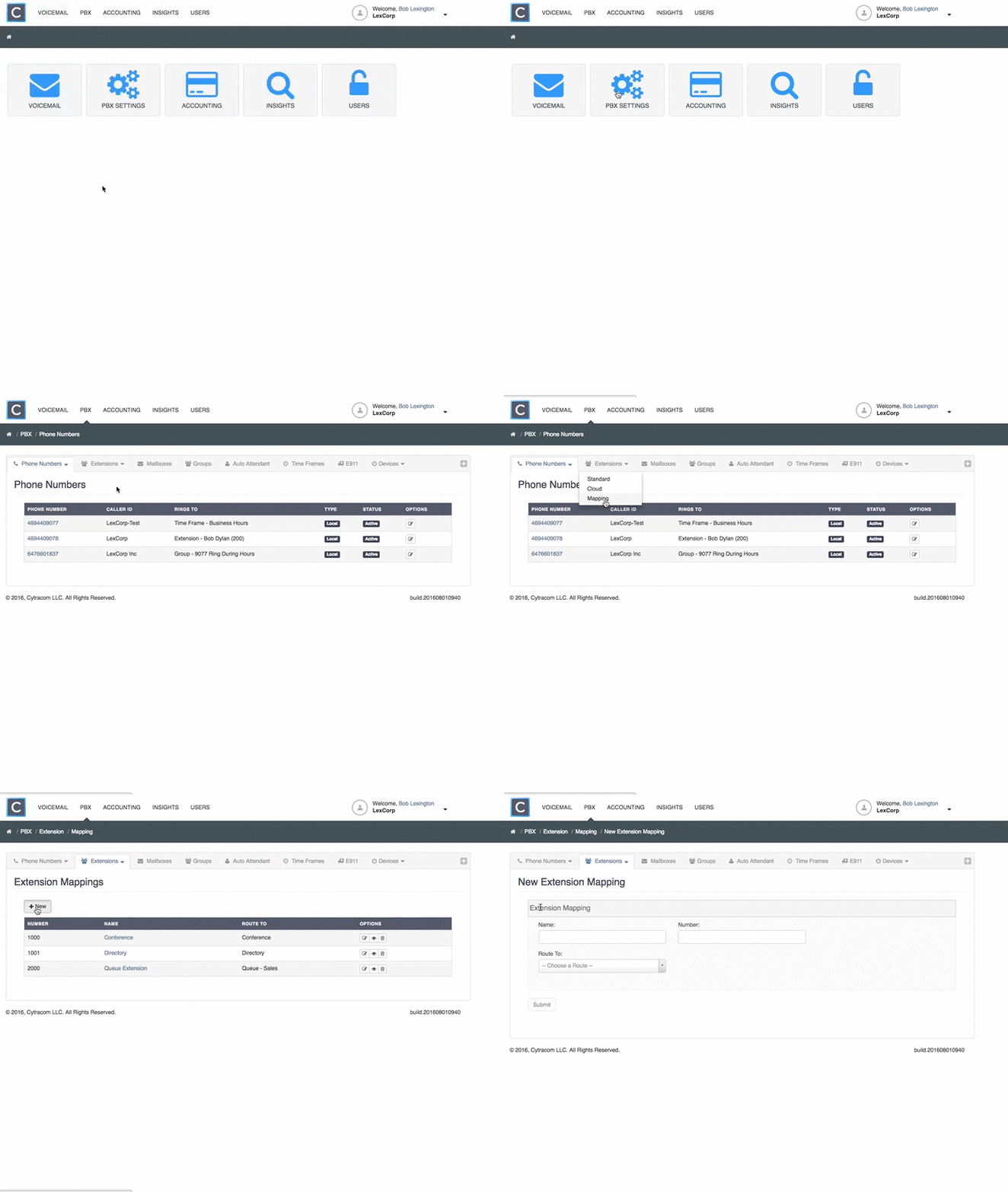
Extension Mapping assigns a virtual extension (e.g. 8000) to the bridge. Internal users dial it directly; external callers reach it only when an employee transfers them.
Note: Outside callers cannot dial an extension mapping number directly from an external line.
Setup
- In the PBX top menu, click + > Extensions > Mapping.
- Click + New.
- Enter a Name (e.g. Conf Bridge – Internal).
- Enter an Extension Number that is not already assigned to a user or device.
- Set Route Type to Conference Bridge.
- Select your Conference Bridge Room from the destination dropdown.
- Click Submit.
Using it
- Join internally: From any Cytracom phone or app, dial the mapped extension (e.g. 8000) and enter the PIN.
- Transfer an external caller: Answer the call, start a Blind Transfer, and dial the mapped extension. The caller lands on the bridge PIN prompt.
Option A: Extension Mapping (internal dialing & transfers)
If you don't have a dedicated number for conference calls, add a keypress to your main Auto Attendant so any outside caller dialing your primary business number can reach the bridge.
Setup
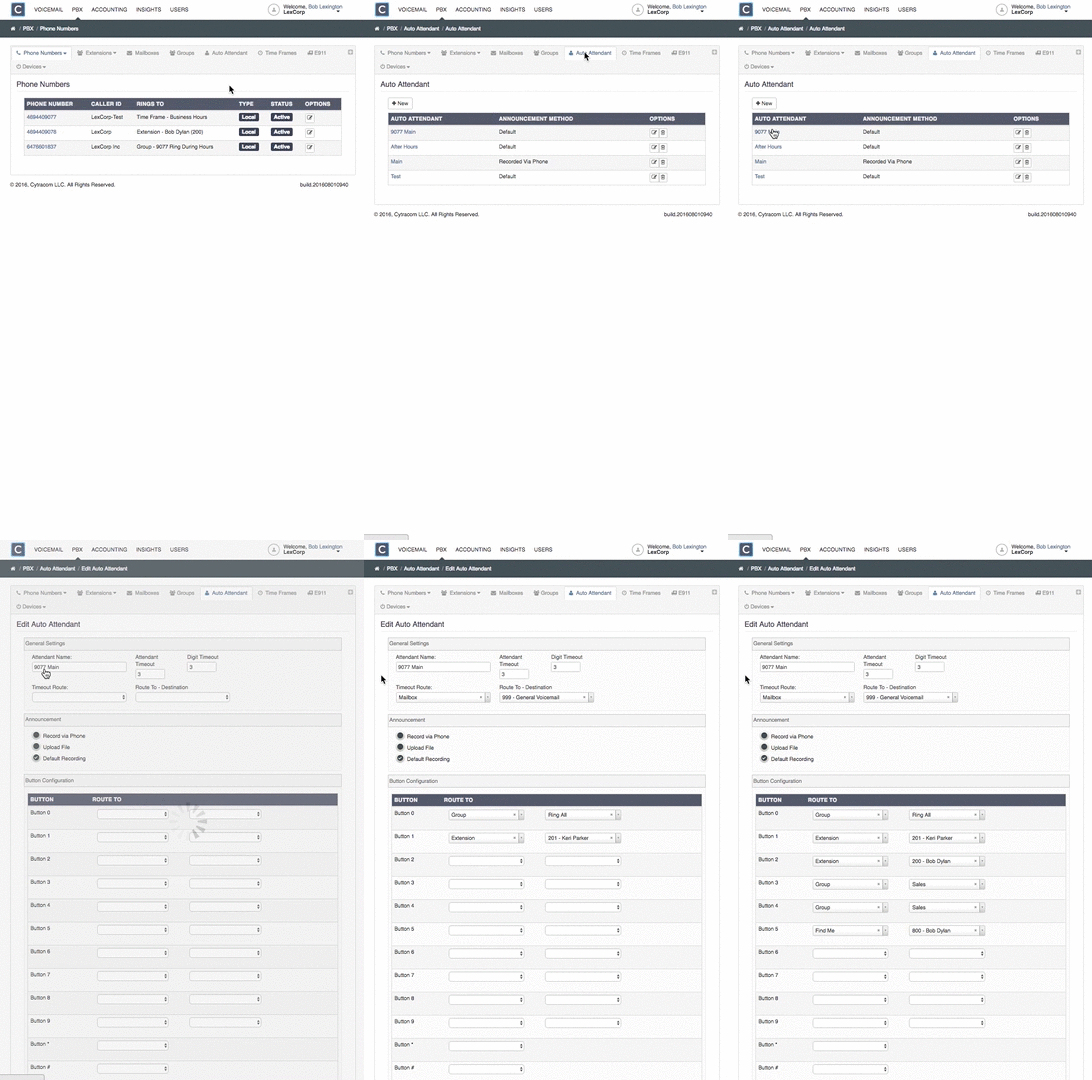
- Go to PBX > Auto Attendants and select your active Auto Attendant.
- Add a new keypress option (e.g. Press 8).
- Set the destination to Conference Bridge and select your room, or point it to the Extension Mapping from Option A.
- Update or re-record your greeting so callers hear the new option.
- Click Submit.
Option B: Auto Attendant menu option (main number keypress)
Routes a dedicated external phone number straight to the bridge PIN prompt, with no menu or transfer needed. Works for internal and external callers.
Setup
- In the PBX main menu, click Phone Numbers.
- Select the number you want to dedicate to the bridge.
- Scroll down to the Call Routing section.
- Under Default, set the routing type.
- Under Route To / Destination, select Conference Bridge and choose the room.
- Click Submit.

Option C: Direct Dial phone number (dedicated DID)
Meeting invites & best practices
When inviting external guests, share the dial-in details and the right PIN. Sample invitation:
Join the conference call
Direct dial: (XXX) XXX-XXXX
Main line: Call (XXX) XXX-XXXX and press 8 when the menu plays
Access PIN: XXXX
Security & usage tips
- Role distribution: Keep the Moderator PIN with meeting organizers. Give the Standard PIN to participants and the Silent PIN to view-only attendees.
- Post-call hygiene: Change PINs after sensitive meetings, or keep separate rooms for recurring external vendor calls.
- Lock the room: Moderators should press 2 once all attendees have joined.
Troubleshooting
| Symptom | Cause | Fix |
|---|---|---|
| External caller gets an error when dialing an extension directly | Extension Mappings can't be dialed from outside lines. | Transfer the caller (Option A), or add an Auto Attendant key (Option B) or a dedicated number (Option C). |
| Callers land on voicemail box 999 | The phone number has no active route. | Go to Phone Numbers > Call Routing and assign a destination. |
| Unable to edit call routing on a phone number | The line is bound to a Voice Continuity Policy in Failover Mode. | Wait until failover clears, then edit the routing. |
| Conference Bridge isn't in the dropdown menus | The bridge hasn't been created yet. | Complete Step 1 first. |
| Busy signal or dropped calls on large meetings | The account participant limit has been reached. | Check capacity: 4 participants per active extension. |
| Mute All / Lock Room don't work | The caller entered a Standard or Silent PIN. | Re-dial and enter the Moderator PIN. |