
Time Frames allow the routing of calls to different PBX components depending on the day and time of the call. Time Frames can be used to define business hours for a company, a department, or an individual.
Time Frames may also be nested within other time frames for more complex call routing if needed.
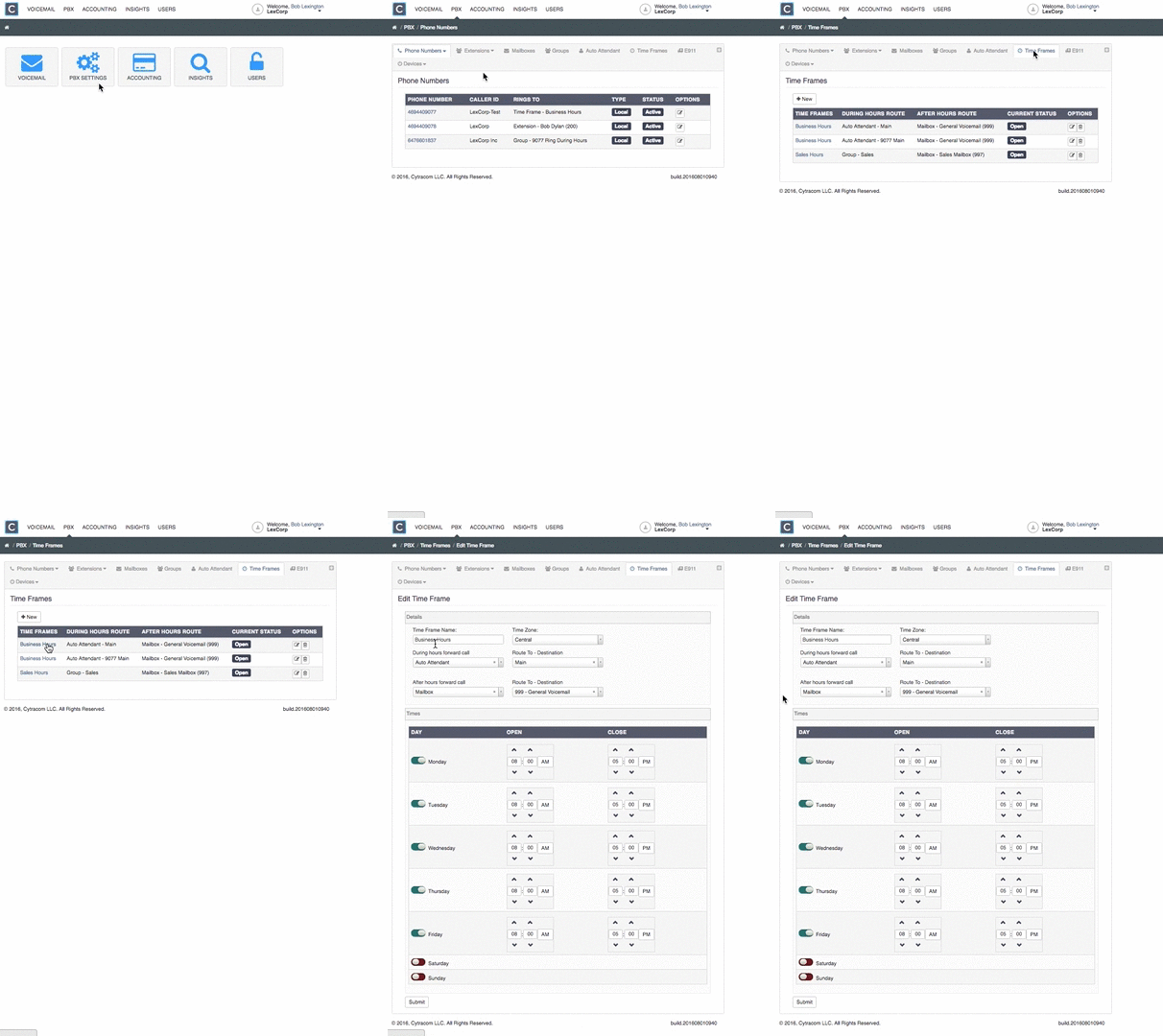
Creating a time frame:
- In the PBX, click on the Time Frame tab on the menu bar.
- Click + New.
- Name the Time Frame. (i.e. Business Hours)
- Select the Time Zone.
- Select During Hours Forward Call destination location, usually a group or an auto attendant.
- Select After Hours Forward Call destination, usually a mailbox or a call forward to an external number.
- Activate days and set opening and closing times within those days.
- Click Submit.
Nesting Time Frames
Time Frames may also be nested within other time frames for more complex call routing if needed. This is particularly useful for situations where call routing needs to be configured differently for certain days.
To properly configure nested time frames, the During Hours Forward Call selection should be the desired resource, while the After Hours Forward Call selection should be the next time frame. Time frames need to be referenced in order from least used to most used. An example is included below.
- Lunch Example: Monday - Friday 12:00 pm - 1:00 pm
- Business Hours Example: Monday - Friday 8:00 am - 5:00 pm